I was recently sent this error by a customer who was trying to backup their Operations Manager 2012 Data warehouse database.

image


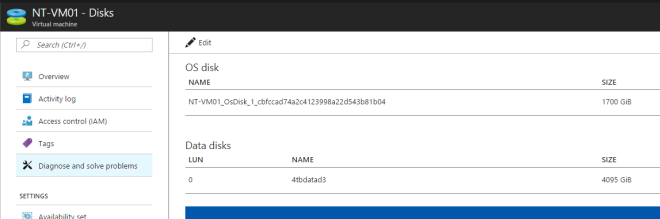
I did some initial troubleshooting and found out that the database was around 130GB in size and the destination didn’t have sufficient space for the backup. I tried with an alterative location with more storage space, and I was able to successfully backup the database.

I would also recommend looking at database grooming settings for Operations Manager data warehouse, as this database could be large in size with time. Refer below url for technet reference relating to Operations Manager data warehouse grooming.

http://technet.microsoft.com/en-us/library/hh212806.aspx

In this blog post we will look at an issue relating to sharing the same iSCSI Storage network for cluster communication. Looking at networking best practices for creating a Windows Server 2012 Failover Cluster, it is recommend that we separate iSCSI storage traffic from Cluster Communication. iSCSI needs to be on a separate dedicated network and it is not recommended to share iSCSI Storage Trafic & Network communication traffic.

At the time of cluster being created, it will automatically disable the network for cluster communication if it is used for iSCSI Storage traffic and this will cause the cluster creation to fail. I have seen that the cluster creation process fails if the same network is been shared for iSCSI Storage and also for Network Communication.

While running Cluster validation, you will notice that there’s a warning under networks stating that the network will be disabled for cluster use when it’s used for iSCSI storage.

clip_image002

If you ignore, and continue to build the cluster, you will notice that the cluster will not get installed and you will see following errors on the report.

clip_image004

Incase if you are trying this on a LAB environment, there’s a workaround which can be used to overcome this situation. However, it is highly recommend that you separate iSCSI Storage traffic from your network communication network when creating a cluster.

As I was trying this in my lab environment, let me explain how you could workaround this situation.

Step 01

Proceed to creating the cluster with a single node.

clip_image006

Step 02

You will notice that you are now able to build the cluster without getting an error.

clip_image008

Step 03

Before proceeding to add remaining nodes, verify that the network allows for Cluster Communication and it is not disabled.

clip_image009

Step 04

Upon verification, proceed and add remaining nodes in to the cluster. And you will be able to successfully add remaining nodes in to the cluster.

clip_image011

As mentioned earlier, please note that this is not a recommended configuration. However if you are using this on a LAB environment, this is a workaround for you to use the same network and build a cluster using Windows Server 2012 Failover Clustering.

More information relating to Networking Requirements for creating a cluster, please refer below mentioned link

http://technet.microsoft.com/en-us/library/jj612869.aspx

The Microsoft Virtual Academy (MVA) team is excited to open registration for two new courses in a three-Jump Start series focused on virtualization. These one-day live online events are designed for IT Pros experienced in virtualization but interested in learning how to better leverage the Windows Server 2012 platform, Hyper-V and System Center 2012 SP1. All three courses will leverage a team-teaching approach to deliver an engaging, demo-rich, live learning experience.

REGISTER NOW for each of these great (FREE) sessions!

  • Introduction to Hyper-V Jump Start — Jan. 24, 2013, 8am-5pm PST
    • Instructor Team: Symon Perriman and Jeff Woolsey
    • This is the first of a three course series and is designed for IT Pros experienced in virtualization (i.e., VMware) but in need of learning how to leverage Hyper-V to perform essential tasks in the Windows Server 2012 platform.
  • Microsoft Virtualization for VMware Professionals Jump Start– Jan. 30, 2013, 8am-5pm PST
    • Instructor Team: Symon Perriman and Matt McSpirit (both VMware VCPs)
    • This is the second of a three course series and is tailored for VMware professionals looking to get up-to-speed on how Windows Server 2012 Hyper-V and System Center 2012 SP1 compares with VMware vSphere 5.1 and VMware’s Private Cloud, respectively.
  • Microsoft Tools for VMware Integration/Migration Jump Start– Late Feb. 2013, STAY TUNED
    • Instructor Team: Symon Perriman (VMware VCPs) and TBD
    • This is the third of a three course series and is tailored for VMware professionals looking for ways to better leverage the Windows Server 2012 platform and System Center 2012 SP1 to integrate with VMware more effectively.

Interested in exploring the best ways to manage and secure PCs, tablets (Surface, iPad, etc.) and mobile devices (Windows Phone, Android, iPhone) in the cloud? Check out the Windows Intune Jump Start on January 31, 2013!

More information please visit http://borntolearn.mslearn.net/events/b/weblog/archive/2013/01/09/new-series-of-virtualization-jump-starts.aspx

    System Center 2012 SP1 Final release was made available to public (General Availability) on 15th Jan. System Center SP1 delivers many enhanced capabilities across both desktop management and datacenter management.

    Some of the key changes with SP1 for Datacenter Management

    • Support for Windows Server 2012 and SQL Server 2012
    • Software Defined Networking (Network Virtualization)
    • Global Service Monitor with Windows Azure / Visual Studio & Operations Manager
    • Hybrid Cloud Management (Integration of Off-premises Resources in to your own Datacenter)
    • Cloud-based Pricing and Chargeback
    • Copy an On-premises Virtual Machine to Windows Azure
    • Windows Azure Online Backup integration with Data Protection Manager

    More information –

    http://blogs.technet.com/b/server-cloud/archive/2013/01/15/transform-your-datacenter-with-system-center-2012-sp1.aspx

    http://blogs.technet.com/b/stbnewsbytes/archive/2013/01/15/the-cloud-os-new-solutions-available-today-advance-microsoft-s-vision.aspx

    http://technet.microsoft.com/en-us/library/jj649385.aspx

    Client Management features with SP1

    - General Availability for Intune along with SC 2012 SP1

    • Providing Management & Software Distribution for Windows RT, Windows Phone 8, Android and iOS
    • Manage both corporate & personally owned devices using a single console
    • Self-service portal for selecting and installing company apps

    - Configuration Manager SP1

    • Support for Windows 8 and Windows Server 2012, including delivery of Windows 8 applications, the ability to limit downloads on 3G and 4G network connections to prevent unwanted data charges, and support for Windows To Go
    • Native management of Windows Embedded devices
    • Support for PowerShell for administrative tasks
    • Windows Azure-based Distribution Points
    • Support for Mac OS X devices and Linux and Unix servers

    - Endpoint Protection 2012 SP1

    • Ability to automatically deploy definition update three times per day
    • Real-time administrative actions to update definitions, scan, and remediate issues quickly
    • Client-side merge of antimalware policies

    More Information

    http://blogs.technet.com/b/windowsintune/archive/2013/01/15/delivering-unified-device-management-with-windows-intune-and-system-center-2012-configuration-manager-sp1.aspx

    In this blog post we will have a look at new capabilities & features introduced in Failover Clustering with Windows Server 2012. We will also discuss on features which were improved from Windows Server 2008 R2 Failover Clustering.

    clip_image002

    Lets first look at scalability improvements in Failover Clustering.

    With Windows Server 2012 Failover Clustering, we can now scale up to 64 Nodes compared to 16 nodes which was possible on Windows Server 2008 R2. We have almost 4 times of the scale from the previous edition and also twice scalable as Vmware ESX 5.1 which can only move up to 32 Nodes per cluster.

    Windows Server 2012 also supports up to 8000 VMs per Cluster and also 1024 VMs per Node where as previously on Windows Server 2008 R2, we could only scale up to 1000 VM Per cluster.

    Failover Clustering is now available as a feature with both Standard Edition & Datacenter Editions of Windows Server 2012. Its not required anymore for you to purchase Enterprise/Datacenter Editions, like in Server 2008 R2, to take advantage of failover clustering, its available with both editions of Windows Server Standard and Datacenter. (There’s no Enterprise edition for Windows Server 2012 only Standard & Datacenter)

    Looking at Large scale cluster management capabilities introduced with Server 2012, I would like to highlight following key features which makes it simple & efficient to manage clusters across the datacenter.

    - Search filtering and creation of custom views

    - Multiselect

    - Live migration & Quick migration

    - CSV Configuration

    - Hyper-V Replication

    Management and Mobility capabilities of Failover Clustering

    In this section we will discuss regarding improvements for Mobility & Management of Failover Clusters

    - Virtual Machine failover Prioritization

    VM Prioritization can be configured to change the behavior of Virtual Machines when they failover and also when they are starting up. We can specify High, Medium, Low or No Auto Start sessions which will determine the behavior of a Virtual Machine when they are starting up after a failure. High Priority Virtual Machines will get started first and if there are no resources low priority VMs will go to a saved state providing sufficient capability for High Priority Virtual machines to start.

    - Enhanced Failover placement

    Failover placement becomes critical whether you are intentionally moving Virtual Machine or due to a failure of a node, virtual machines needs to be placed distributed across available node optimizing available resources. Server 2012 has intelligence built-in with Cluster services which can determine candidate node by looking at physical memory resources and also existing workloads for a rapid failover.

    - Virtual Machine Mobility

    Failover clustering provides mobility capabilities for Live migration, Quick migration, storage migration and also Hyper-V Replica. Live migration was first introduced in Windows server 2008 R2 and it has been improved to provide multiple simultaneous live migrations to be proceed between same nodes of the cluster. Windows Server 2012 also provides

    -Storage Migration

    Storage migrations provides capabilities for moving a virtual machine to a different location including its data store & configuration. It is possible for us to execute a live storage migration while the virtual machine is running and without having to have a downtime.

    -Hyper-V Replica

    Hyper-V replica is a disaster recovery capability which is built in to the box. Hyper-V replica doesn’t require any storage replication solution, only with the use of another hyper-V target it is possible for us to replicate VMs with 5 minute intervals.

    - Application Monitoring

    With Failover clustering and hyper-v integration, we can monitor applications running in a virtual machine. Using this capability we can detect whether a key service of a virtual machine has a failure and If it does automatically provide corrective actions such as restarting a service, restarting the virtual machine or moving the virtual machine to another node in the cluster.

    - Guest Clustering Improvement

    o Guest clustering can provide required high availability for applications running on Virtual Machines using Failover clustering capabilities available on Windows Server 2012. With previous release of Windows Server, we could only provide iSCSI-shared storage for Guest clustering, but now with Server 2012 we can also provide Fiber Channel support by using a Virtual Fiber Channel Adapters to Virtual machines.

    Cluster-Aware Updating

    This is one of the most asked features by customers for Clustering. Cluster-aware updating provides capabilities for automated patching for Windows Failover Clusters. Cluster-Aware updating feature will take advantage of node draining and failback availabilities during update process. Cluster-Aware updating works with either Windows Update or Windows Server Update Services which determines which updates that needs to be installed on cluster nodes. Cluster-Aware updating will drain all workloads from a cluster node and it will place the node on maintenance mode. Once the node gets placed on maintenance mode Cluster-Aware Updating will then download and install required updates. If required, Cluster-Aware updating will reboot the machine and complete the patching process which will take the node out of maintenance and migrate workloads back to the node before progressing towards the next node in the cluster.

    clip_image004

    We will look at more features such as Cluster Storage, Active Directory Interoperability, Cluster Validation Process, Cluster Quorum Improvements, and Supported Roles for Clustering in my next blog post.

    Presentation Timer Tool

    Posted: 4 June, 2012 in Other, Software

    While searching for a tool that can be used as a countdown when delivering presentations & demonstration I found this tool “Presto’s Presentation Timer” . This tool can be customized based on the duration of the presentation and you can start/pause the countdown as and when required.

    image

    You can download this presentation tool from this link http://prestonhunt.com/story/109